
How PDF-to-Word.io Helps Operations Teams Update Legacy Documentation
Operations teams depend on current documentation. Standard operating procedures, incident runbooks, supplier manuals and compliance instructions may remain in use for years, even as systems and responsibilities change. When the only available copy is a PDF, updating a command, replacing a screenshot or reorganising a procedure can become unnecessarily time-consuming.
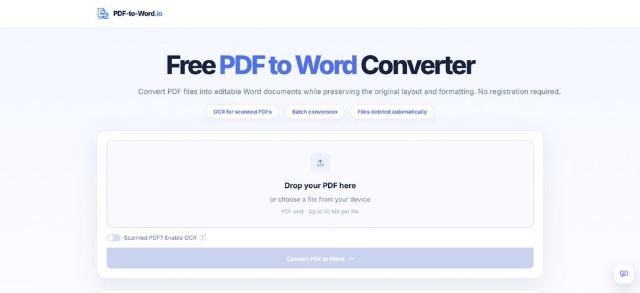
A PDF to Word converter gives teams a practical way to recover editable content from these files. PDF-to-Word.io converts text-based and scanned PDFs into DOCX documents, providing a working file that can be revised in Microsoft Word or another compatible editor. The service is available through a browser, accepts files up to 50MB and does not require registration or a subscription.
The converted document still requires review. PDFs store content in fixed positions, while Word uses a flowing document structure. Complex tables, columns, diagrams and page elements may therefore shift during conversion. Treating the DOCX as a recovered working copy helps teams update documentation without losing sight of the approved source.
Why Legacy PDFs Create Problems for Operations Teams
PDF is useful for distributing a stable version of a document. That same stability becomes restrictive when the content needs to change.
An operations team may inherit documents from a former employee, external supplier or discontinued system. The original Word file may be missing, inaccessible or too outdated to match the approved PDF. Copying content manually often introduces new formatting and transcription errors.
Procedures Change Faster Than Archived Documents
Operational documents contain details that can become obsolete quickly:
- Server names and file paths
- Escalation contacts
- Software versions
- Command-line instructions
- Maintenance schedules
- Supplier details
- Approval responsibilities
- Screenshots of old interfaces
Even one outdated step can delay an incident response or send an operator to the wrong system. Editable source files make these changes easier to manage and review.
Manual Copying Can Damage the Document Structure
Copying text directly from a PDF may break paragraphs into individual lines. Tables can lose their columns, numbered procedures may restart unexpectedly, and captions may become separated from diagrams.
Rebuilding a long runbook or technical manual manually also creates opportunities for omissions. A warning box, footnote or prerequisite can disappear during copying even when the main text appears complete.
Where Editable Documents Support Operational Work
Some PDFs need only occasional reference. Others should remain editable because they support recurring operational activity.
Standard Operating Procedures and Runbooks
SOPs and runbooks often change as systems, vendors and internal responsibilities evolve. Recovering the content in Word allows teams to revise individual steps, apply consistent headings and insert new screenshots without recreating the full document.
The recovered file can also be adapted into shorter checklists for common incidents while the longer version remains the controlled reference.
Vendor and Technical Documentation
Suppliers may provide installation instructions, maintenance guides or configuration documents only as PDFs. Internal teams sometimes need to add environment-specific notes, ownership details or local escalation procedures.
A converted Word file can serve as the basis for an internal working guide. The original vendor PDF should remain available so that technical statements can be checked against the source.
Compliance and Audit Materials
Policies, control descriptions and evidence templates may need regular updates. Converting an older PDF can save time when the document structure remains useful but names, dates or responsibilities have changed.
Documents used for audits or regulatory purposes require formal review after editing. Conversion recovers the content; it does not preserve the document’s approval status.
A Practical PDF-to-Word Recovery Workflow
A controlled workflow reduces the chance that conversion errors enter active procedures.
1. Preserve the Original PDF
Save an unchanged copy before beginning. Give it a filename that identifies its status, such as:
Network_Recovery_Runbook_Approved_2025.pdf
The original provides a visual and factual reference throughout the review process.
2. Identify the PDF Type
Try selecting a sentence with the cursor. If individual words can be highlighted, the file is probably text-based. If each page behaves like a single image, the document is scanned or image-based.
Text-based files can usually be converted directly. Scanned PDFs require optical character recognition, or OCR, to identify the text contained in the page images.
3. Create the Editable Working Copy
Teams can convert PDF to editable Word by uploading the source file to PDF-to-Word.io and downloading the resulting DOCX. OCR should be enabled when the source is scanned or image-based; ordinary text-based PDFs generally do not require it.
Name the output clearly:
Network_Recovery_Runbook_Recovered_2025.docx
This label helps prevent the recovered document from being confused with an approved or published version.
4. Compare the DOCX With the Source
Open the PDF and Word file side by side. Review each section in sequence instead of checking only whether the document looks broadly similar.
For long files, divide the review between team members and record which sections each person checked. A simple review log can include the page range, reviewer, date and issues found.
5. Restore the Document Hierarchy
Apply Word Styles to titles, headings, body text, captions and lists. This makes the document easier to navigate and creates a more maintainable source for future revisions.
Styles also help teams generate an accurate table of contents and maintain consistent formatting when sections are added later.
What Operations Teams Must Verify
The most important checks concern operational meaning rather than visual perfection.
Commands, Paths and Configuration Values
Compare command-line instructions character by character. A missing slash, altered dash or incorrect quotation mark can make a valid command fail.
Check:
- Commands and code snippets
- File and directory paths
- IP addresses and hostnames
- Port numbers
- Environment variables
- Configuration keys
- Product and software versions
Code-like content may require manual reformatting in Word because line wrapping and special characters can change during conversion.
Tables, Diagrams and Warning Boxes
Tables can contain thresholds, maintenance intervals, contact routes or decision criteria. Confirm that each value remains associated with the correct row and column.
Diagrams and screenshots should remain beside the relevant instructions. Review warning boxes separately, especially when they describe safety requirements, prerequisites or actions that could affect production systems.
Dates, Numbers and Approval Details
Check dates, decimal values, units, ticket references and version numbers against the source. OCR output deserves closer attention because similar characters may be confused, such as 0 and O or 1 and l.
Names, signatures and handwritten annotations must also be checked manually. OCR performance on handwriting is unpredictable, so handwritten content should never be assumed to have been recovered accurately.
Build Version Control Around the Recovered File
Once the content has been verified, the team can begin making changes. Use a new version number and document the reason for each revision.
A practical file sequence might be:
- Database_Failover_Procedure_Approved_v2.pdf
- Database_Failover_Procedure_Recovered_v2.docx
- Database_Failover_Procedure_Draft_v3.docx
- Database_Failover_Procedure_Approved_v3.pdf
The revision record should identify the owner, reviewers, approval date and next review date. For sensitive procedures, limit editing permissions and store the working file in the organisation’s approved document repository.
Frequently Asked Questions
Can PDF-to-Word.io convert scanned operational documents?
Yes. OCR can be enabled for scanned and image-based PDFs. The recognised text, numbers and symbols should be compared carefully with the original scan.
Does PDF-to-Word.io preserve complex layouts perfectly?
Conversion results depend on the structure of the source PDF. Multi-column pages, text boxes, complicated tables and unusual fonts may require manual correction in Word.
Should the recovered Word file replace the approved PDF?
Only after the revised document has passed the organisation’s normal review and approval process. Until then, the original PDF remains the reference copy and the DOCX should be labelled as a working document.
Keeping Operational Documentation Maintainable
Legacy PDFs often contain useful operational knowledge, yet their fixed format makes routine maintenance difficult. Recovering that content in Word can reduce manual rebuilding and give teams a more manageable starting point for revisions.
PDF-to-Word.io supports this recovery process by converting text-based or scanned PDFs into editable DOCX files. Reliable results still depend on careful comparison, technical review, clear version naming and formal approval. With those controls in place, teams can turn static documentation into working material that remains useful as systems and procedures evolve.